


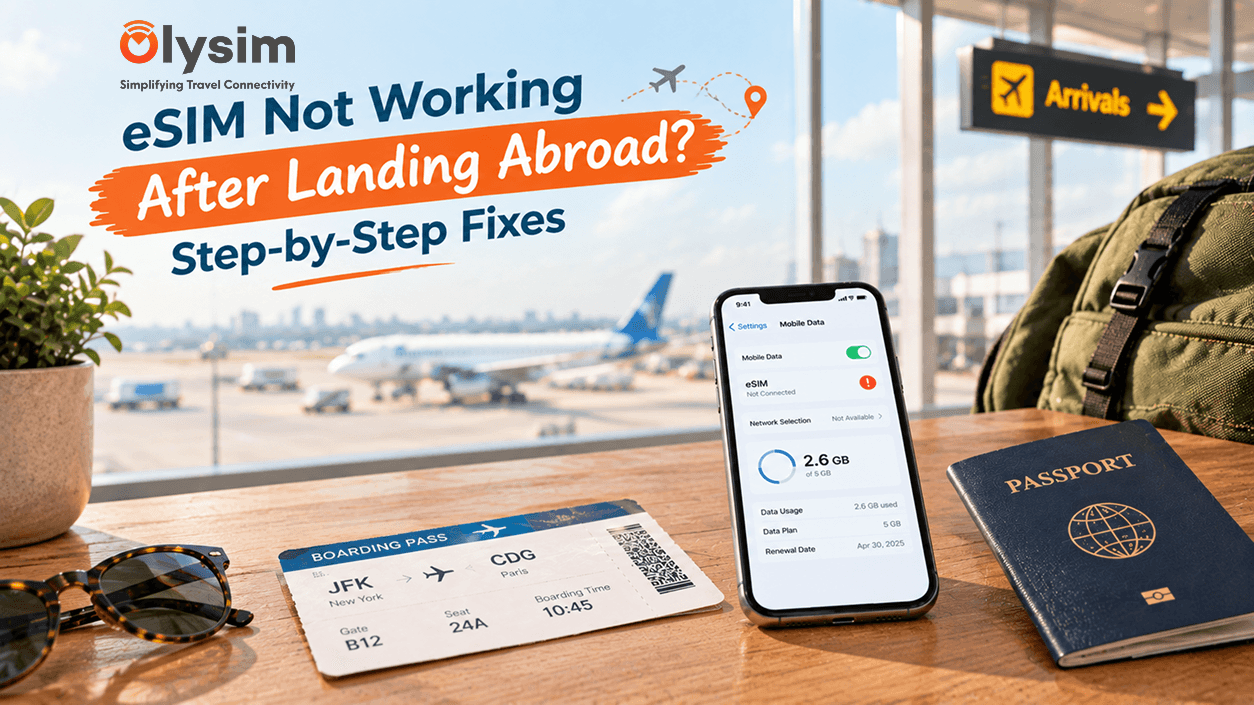
Short answer: Most eSIMs that seem dead after landing just need two things: Data Roaming switched on for the eSIM line, and the eSIM chosen as your mobile data line. Try those first, then restart your phone.
You have just landed. The plane door opens, you switch off flight mode, and your phone shows no signal. Your cab, your hotel address and your family's messages are all waiting.
Do not panic. An eSIM is a SIM built into your phone, so there is no small plastic card to swap. When it fails, the cause is almost always a setting, not a fault. This guide walks you through the fixes in the order that solves most cases.
Why is my eSIM not working after landing?
There are five common reasons. The good news is that each one is quick to check.
- Data Roaming is off. Roaming means using a network outside your home country. Your eSIM needs this switched on.
- Your phone is using the wrong SIM for mobile data, usually your Indian SIM.
- The eSIM line itself is switched off.
- The phone has not yet picked a local network in the new country.
- The eSIM was never installed properly, or your phone does not support eSIM at all.
The 60-second check before you try anything else
Start here. It takes a minute and often fixes the problem.
- Connect to airport Wi-Fi. Delhi, Mumbai and Bengaluru airports all offer it, and so do most airports abroad.
- Turn flight mode on. Wait ten seconds.
- Turn flight mode off. Wait one full minute.
- Check the top of your screen for a network name and signal bars.
New networks can take a minute or two to appear. If you see bars and a local network name, try opening a web page. If it still does not load, move to the steps below.
How to fix a travel eSIM on iPhone
Menu names can differ a little between iPhone versions. Look for the closest match.
- Open Settings and tap Mobile Service (some phones say Cellular).
- Find your travel eSIM under SIMs. Make sure the switch to turn on this line is on.
- Tap the eSIM and switch on Data Roaming.
- Go back and tap Mobile Data. Choose your travel eSIM.
- Turn off Allow Mobile Data Switching, so your phone does not slip back to your Indian SIM.
- Restart your iPhone.
Still nothing? Open the eSIM, tap Network Selection, and switch off Automatic. Pick a local network from the list. Try a different one if the first does not work.
How to fix a travel eSIM on Android (Samsung, Pixel, OnePlus, Xiaomi)
Android phones from different brands use different menu names. The idea is the same on all of them.
- Open Settings, then Connections (Samsung) or Network and Internet (Pixel and most others).
- Tap SIM Manager or SIMs. Make sure the travel eSIM is switched on.
- Set the travel eSIM as your Mobile Data SIM.
- Open the eSIM's settings and switch on Data Roaming.
- Restart your phone.
If you still have no signal, go to Mobile Networks, then Network Operators. Turn off automatic selection and pick a local network by hand.
What your problem means and what to try
Use this table to match what you see on screen with the most likely fix.
| What you see | Likely cause | Try this |
|---|---|---|
| No signal bars at all | eSIM line off, or no network picked | Turn the line on, restart, choose a network by hand |
| Signal bars, but no internet | Data Roaming off, or wrong data SIM | Turn on Data Roaming, choose eSIM for mobile data |
| Says SOS only or Emergency calls only | Phone has not joined a network yet | Flight mode on and off, then pick a network by hand |
| Internet works, then stops | Data plan used up or expired | Check your plan's data and dates in your order email |
| eSIM missing from the phone | Install did not finish | Reinstall on Wi-Fi with the steps in our eSIM installation guide |
Is your phone locked to one network?
Some phones are carrier locked. This means the phone only works with one mobile company's SIM. An eSIM from another company will not turn on in that case.
Most phones sold outright in India are not locked, but phones bought on a contract abroad sometimes are. Not sure whether your phone supports eSIM at all? See our list of eSIM-compatible phones, or read how to check if your phone supports eSIM.
If your phone has no eSIM support, a physical Olysim SIM is also available. You put it in the SIM tray like any ordinary SIM.
Will your Indian number still get bank OTPs while you fix this?
Yes, as long as your Indian SIM stays on. Keep it switched on as a second line. Only move mobile data to the travel eSIM.
Your Indian SIM then still receives SMS codes from banks like SBI, HDFC and ICICI. It needs roaming for that, so check with Airtel, Jio or Vi before you fly. For the full picture, read our guide on receiving GPay and PhonePe OTPs abroad.
Be careful not to turn off the wrong SIM while fixing your eSIM. Turning off the Indian line stops your OTPs.
How to avoid the problem on your next trip
Most landing-day problems start at home. Do these before you leave for the airport.
- Install the eSIM on home Wi-Fi the day before you fly. Do not wait until you land.
- Take a screenshot of your QR code and your install steps. Save them offline.
- Give the eSIM a clear name, like Travel, so you do not mix it up with your Indian line.
- Keep the eSIM line switched off until you land, then turn it on and switch on Data Roaming.
- Choose a plan for the country you are visiting. Look at the Olysim plans and check the countries covered.
Setting up a new eSIM does not delete your old one. If that worries you, read how to set up an eSIM without deleting your old one.
When to contact support
Contact support if you have tried all the steps above and still have no service. Also call if your eSIM does not appear in your phone or if the QR code will not scan.
Have your order email ready, and note which phone model you use. You can reach Olysim support on +91 8899864933. You can also browse the Olysim FAQ for quick answers.
In short
An eSIM that looks dead is usually a setting problem. Turn on the eSIM line, switch on Data Roaming, pick the eSIM for mobile data, restart, and choose a network by hand if needed. Do these in order and most people are online in a few minutes.
Planning your next trip? See all Olysim eSIM plans and pick one that starts from a price that suits you.


