


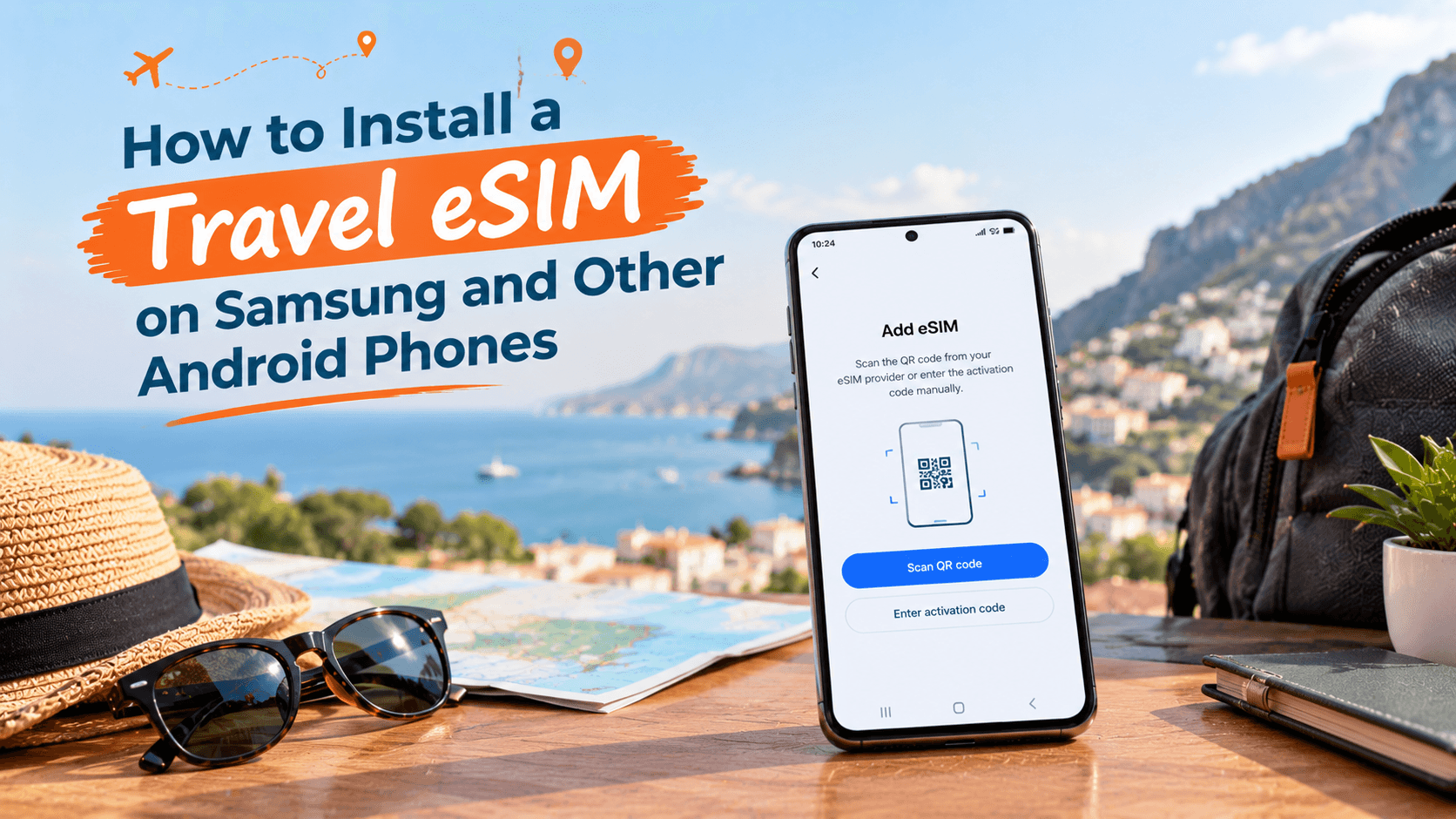
How do you install a travel eSIM on a Samsung or Android phone?
You have bought a travel eSIM and now a QR code sits in your email. You are not sure where on your Samsung, Pixel or OnePlus phone it goes. The good news: it takes about five minutes, and you can finish it at home before you leave for the airport.
An eSIM is a SIM built into your phone, so there is no small plastic card to swap. You add it by scanning a QR code, which is a square barcode your camera reads.
The short answer: connect to Wi-Fi, open your phone's SIM settings, tap Add eSIM, scan the QR code from your Olysim email, and wait for the eSIM to appear in your SIM list. On landing, choose it for mobile data and switch on data roaming for that eSIM.
The exact menu names change a little between brands. This guide covers each one, step by step.
Which Android phones work with an eSIM?
Most flagship Android phones from the last few years have eSIM built in. Common examples are:
- Samsung Galaxy S20 and newer, plus Galaxy Z Fold and Z Flip models
- Google Pixel 4 and newer
- Selected OnePlus, Xiaomi, Oppo and Motorola models
Models sold in India can differ from the same model sold abroad. So check your exact phone before you buy.
The quickest check takes ten seconds. Open your phone dialler and type *#06#. If a number labelled EID appears, your phone has an eSIM. EID is simply the eSIM's own ID number. You can also look up your model on our eSIM compatible device list.
If your phone has no EID, Olysim also offers a physical SIM. It fits the regular SIM tray of any phone and gives you the same travel data.
One more check: is your phone locked?
Some phones are carrier locked, which means they only accept SIMs from the company that sold them. A phone bought outright from a store is usually unlocked. If your phone came on a postpaid plan or EMI scheme from an operator, ask the operator to confirm it is unlocked before you fly.
What should you do before you start installing?
A little preparation makes the install smooth. Do these four things first:
- Join a stable Wi-Fi network at home. The phone needs the internet to download the eSIM.
- Charge your phone above 50%.
- Open the Olysim email on a second screen, such as a laptop or tablet. Your phone cannot scan its own screen easily.
- Keep your regular SIM in the phone. The eSIM sits beside it as a second line.
Wondering whether to install at home or after you land? Our guide on when to install your travel eSIM explains the trade-offs. For most people, installing at home on Wi-Fi is the easiest route.
How to install an eSIM on a Samsung Galaxy phone
These steps match recent One UI versions on Galaxy S, Note, Z Fold and Z Flip phones.
- Open Settings.
- Tap Connections.
- Tap SIM manager.
- Tap Add eSIM.
- Choose Scan QR code from service provider.
- Point the camera at the QR code in your Olysim email.
- Tap Add or Confirm when the phone asks.
- Wait for the eSIM to appear in your SIM manager list. This usually takes under a minute.
Some Samsung phones ask whether to turn the new eSIM on right away. If you are still at home, you can leave it switched off until you reach the airport.
How to install an eSIM on Pixel, OnePlus, Xiaomi and other Android phones
Other brands follow the same idea with slightly different menu names. Use this table to find your starting point.
| Phone brand | Where to go in Settings | What to tap |
|---|---|---|
| Samsung Galaxy | Connections > SIM manager | Add eSIM > Scan QR code |
| Google Pixel | Network & internet > SIMs | Add (+) > Download a SIM instead |
| OnePlus / Oppo | Mobile network > SIM & network | Add eSIM > Scan QR code |
| Xiaomi / Redmi / Poco | SIM cards & mobile networks | Add eSIM > Scan QR code |
| Motorola | Network & internet > SIMs | Add (+) > Download a SIM instead |
If you cannot find your exact menu, type "SIM" or "eSIM" into the search bar at the top of Settings. Android usually jumps straight to the right page.
What if the QR code will not scan?
Your Olysim email also carries the same details as text. Look for an option such as Enter details manually on the scan screen. Then type or paste the SM-DP+ address and the activation code from the email. The SM-DP+ address is just the web address your phone uses to fetch the eSIM. Copy and paste to avoid typing mistakes.
You can see these steps with screenshots on our eSIM installation guide.
How do you turn on your eSIM when you land abroad?
Installing the eSIM is half the job. The other half is telling your phone to use it for mobile data. Do this at the arrival gate, or even before you leave Mumbai, Delhi, Bengaluru or Hyderabad airport if you want everything ready.
- Open Settings and go to your SIM manager (use the table above).
- Switch your Olysim eSIM On.
- Under Mobile data, select the Olysim eSIM.
- Open the eSIM's own settings and switch Data roaming on. Roaming here only means using a foreign network, which is how your eSIM reaches the internet abroad.
- Wait about 30 seconds. A network name and signal bars should appear at the top of your screen.
- Open Google Maps or any website to confirm your data is flowing.
Switching Airplane mode on and off once often helps the phone pick up the local network faster. If the signal still does not appear, follow the checklist in our guide on what to do when your eSIM is not working after landing.
How much data should your travel eSIM have?
Pick the plan size before you install, because the QR code belongs to that plan. A few simple rules help:
- Maps, messages and ride apps use only a little data each day.
- Video calls home and Instagram reels use the most.
- Matching the plan length to your trip days avoids paying for extra time.
Our guide on how much data you need for a week abroad gives a clear day-by-day estimate. Olysim plans start from a low price, and the exact amount depends on your location and destination, so check all eSIM plans for the current figure.
Mistakes that slow down an Android eSIM install
Most problems come from a few small slips. Check these first:
- Weak Wi-Fi. The download stalls halfway. Move closer to the router and try again.
- Scanning the QR code twice. Each code works for one install. Once the eSIM shows in your SIM list, leave it there.
- Forgetting the data roaming switch. The eSIM shows as installed, but the internet stays off until this is on.
- Mobile data still set to your Indian SIM. Change it to the Olysim eSIM so your phone uses the travel plan.
- Using an old Android version. Update your phone before your trip, since eSIM options sit inside newer system menus.
For quick answers to other setup doubts, the Olysim FAQ page covers the most common ones.
Ready to get connected for your trip?
Installing a travel eSIM on Samsung, Pixel, OnePlus or Xiaomi follows one pattern: open SIM settings, add an eSIM, scan the code, then pick it for mobile data. Do the install at home on Wi-Fi, and your phone is ready when you step off the plane.
Choose your destination and data size on our eSIM plans page, and keep the QR code email handy for the airport.


