


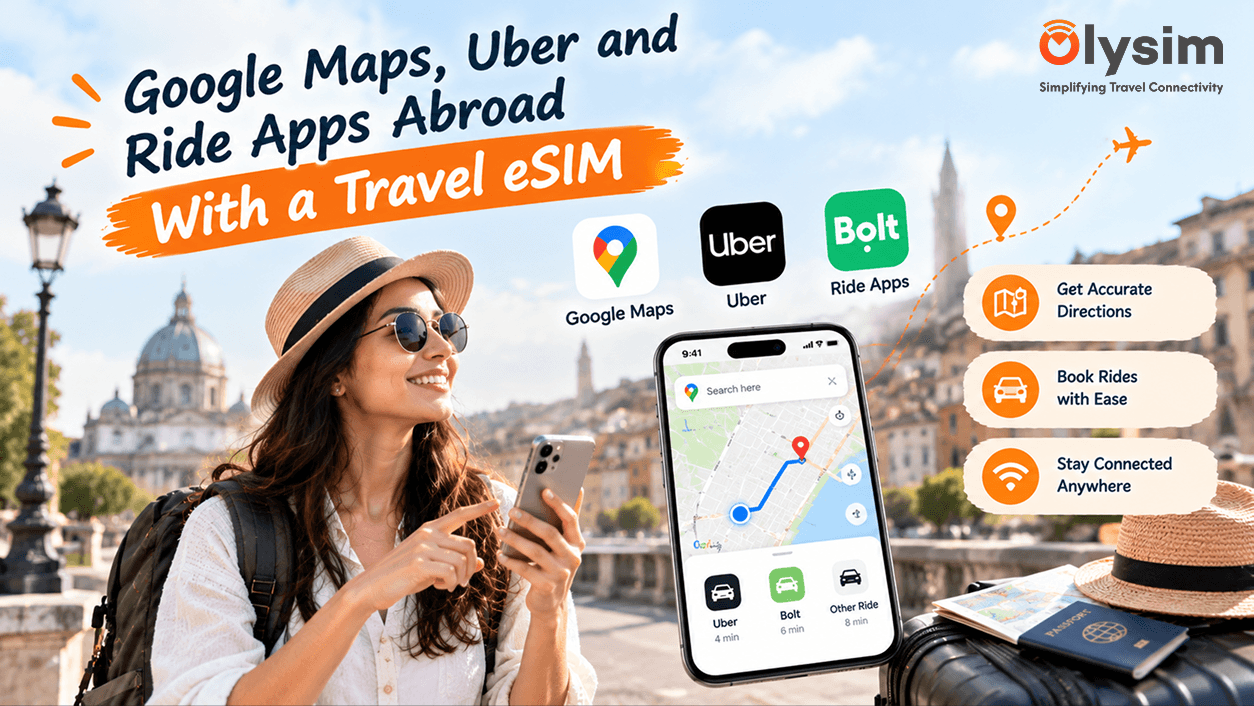
Do Google Maps and Uber work on a travel eSIM?
Yes. Both apps behave as they do at home, because a travel eSIM gives your phone mobile data on a local network as soon as you land. An eSIM is a SIM built into your phone, so there is no small plastic card to swap. People often say eSIM card, but the whole thing is a QR code you scan on your phone.
The tricky part is the first hour. You are in a crowded arrivals hall, the airport Wi-Fi wants a login, and you need to show a driver where your hotel is. This guide follows one ordinary day to show what your phone is asked to do at each point, and what to set up so the map loads on the first try.
What Maps and ride apps ask of your phone
Two separate things happen. GPS, the satellite signal that finds where you are standing, draws the blue dot. It works in any country without mobile data. Mobile data does the rest: it draws the map, loads traffic, finds your driver and shows the car crawling towards you. The eSIM supplies that second part.
These are rough figures to plan with. They shift with the app version and how much you scroll around.
Turn-by-turn directions
Roughly 5 MB for an hour of walking or driving directions.
Booking one ride
A few MB, including the live car tracking while you wait.
Satellite view, Street View and Live View
The heaviest parts of Maps. Use them for a minute at a junction, then switch back.
One offline city map
Often 100 to 300 MB, downloaded once at home on Wi-Fi.
A full day of maps and three rides
Commonly 50 to 150 MB.
One day on the ground, hour by hour
The times below suit a morning arrival at a large international airport. Your city will differ, but the order of events rarely does.
6:40 am, on landing
Switch off airplane mode. Open Settings, pick your eSIM line and turn on Data Roaming for that line. Data Roaming is the switch that lets your eSIM use the local network. Within a minute the top of your screen shows a local network name and 4G or 5G. Open Maps and wait for the blue dot to settle. Not sure whether to install at home or here? This guide on when to install your travel eSIM settles it.
7:15 am, arrivals hall
Open your ride app and look at where the pickup pin sits. At many large airports it is a signposted ride-hailing zone on another level or in a car park, away from the taxi rank outside arrivals. Walk to the pin, not to the kerb. Check the number plate in the app against the car before you get in.
8:00 am, in the car
Tap the share-trip option in the ride app and send the link on WhatsApp to someone at home. Keep Maps open on your hotel address too. You can see whether the driver is taking the route you expected, which takes about 5 MB an hour.
10:30 am, walking around
Star your hotel, the station and anything you plan to visit. Starred places show up on the map every time you open it, so you stop retyping names. Choose walking directions and keep the phone in your pocket with the voice guidance on.
1:00 pm, lunch
This is where data goes fastest. Restaurant photos, reviews and the camera translate feature in Google Translate all download pictures. A menu you cannot read is a good use of it. Point the camera, read the English, then close the app.
4:00 pm, bus or metro
Tap the train icon in Maps for public transport. It shows the next departures, the platform and how many stops remain. Mobile signal inside some underground stations is patchy, so keep your offline map on the phone for those stretches.
7:30 pm, rain and a ride back
Open the ride app and read the fare it shows before you confirm. In cities where two apps run side by side, such as Uber and Bolt, check both. It takes ten seconds and uses only a few MB.
10:00 pm, lights out
Open Settings, then Mobile Data, and see what the day used. A day like this commonly lands between 50 and 150 MB. Use that number to judge how much data to pick for the rest of the trip.
What to set up at home, before you fly
An evening at home before leaving Delhi, Mumbai or Bengaluru saves an awkward first hour. Do these in order.
- Download your city offline. On home Wi-Fi, open Google Maps, tap your profile picture, choose Offline maps, then Select your own map. Drag the box over the area you will cover and tap Download.
- Install the ride apps you will need. Uber runs in many countries. Elsewhere you will find Bolt, Grab, Careem, Lyft or a local taxi app. Ola's service is built around India, so check the app store for what locals use at your destination. Sign in before you leave.
- Switch on international use for your card. HDFC, ICICI, SBI and Axis all have this toggle in their apps. Then add that card to the ride app so the fare is ready to pay.
- Save your hotel in Maps. Star it and copy the address in the local language if it is written differently. A driver can read that at a glance.
- Get the eSIM on your phone. The eSIM installation guide walks through the QR code. Confirm your handset works with eSIM on the eSIM compatible device list.
Your first twenty minutes go smoother when the city's offline map is already on your phone. The map draws instantly, and your eSIM data goes to the live parts: traffic, your driver and the fare.
If your phone does not support eSIM
Older iPhones and many budget Android models cannot hold an eSIM. For them Olysim also sells a physical SIM, a small card that slides into the SIM tray. It gives the same mobile data for maps and rides. Everything in the day above applies unchanged. Fit the card before you leave the airport, and turn the phone off and on once so it finds the local network.
When the map stalls: three quick checks
The blue dot shows but the map stays grey
GPS is working but mobile data is not reaching the app. Open Settings and check that your eSIM is the line chosen for mobile data and that Data Roaming is on for it. Then switch airplane mode on and off.
The ride app says no cars are available
This is about drivers nearby, not your connection. Drag the pickup pin a street away, wait two minutes, or try the second ride app.
Signal drops in a basement or on a metro platform
Underground spaces are weak for every network. Your offline map keeps showing the route until the signal returns. If the problem follows you everywhere, work through our step-by-step fixes for an eSIM that stops working after landing.
The short version
Maps and ride apps need very little data. Navigation uses about 5 MB an hour, a ride a few MB, and a full day usually stays under 150 MB. Download your city at home, install the ride apps, turn on Data Roaming for the eSIM line when you land, and the first hour goes smoothly. More questions about how a travel eSIM behaves? Our FAQ page covers the common ones.


