


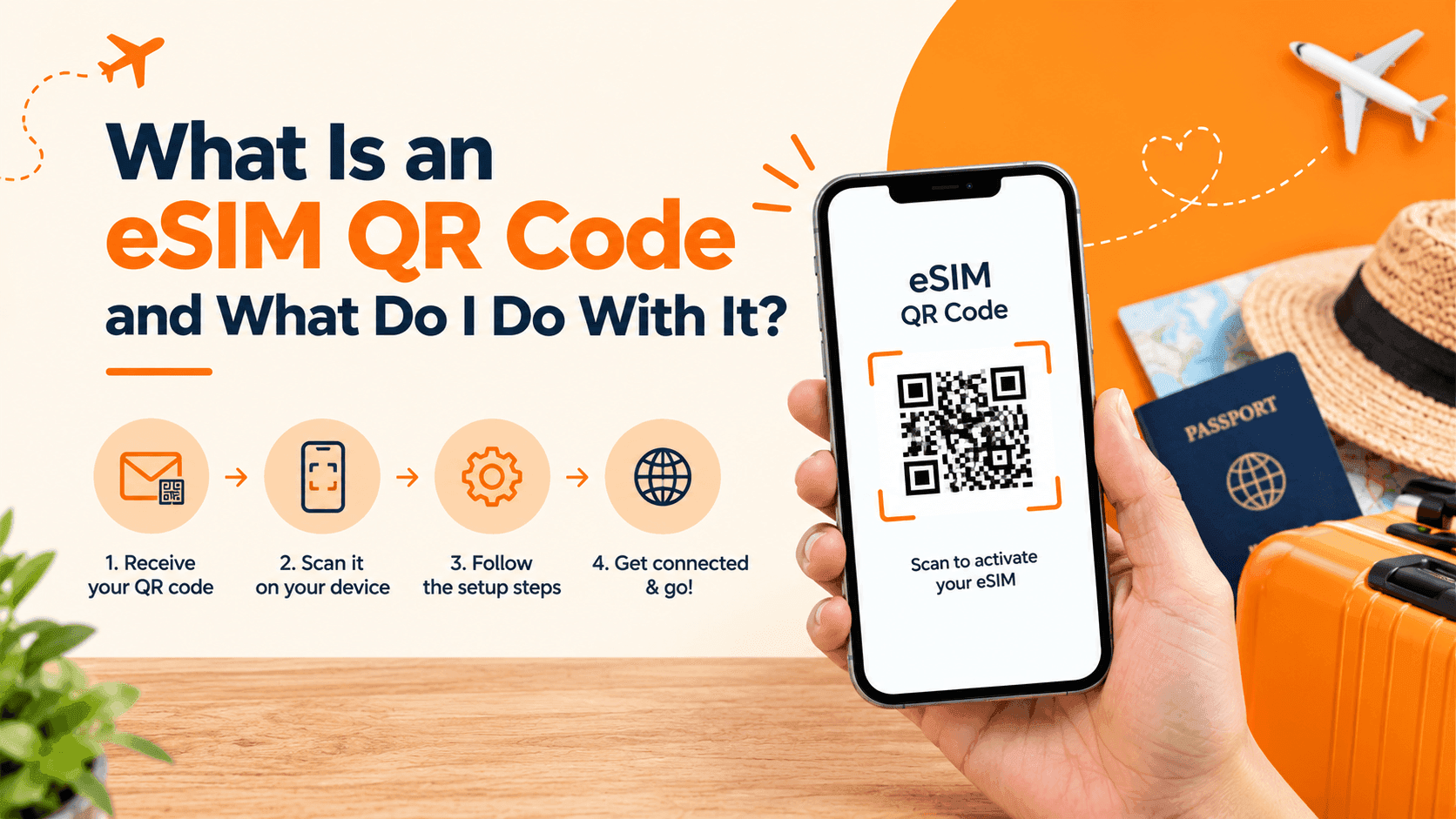
You bought a travel eSIM, and the confirmation email shows a black and white square and nothing else. No card in a packet, no tray, no tiny pin. If you are wondering whether you have been sent the right thing, you have. That square is the eSIM.
What the QR code is
A QR code is a square pattern that a phone camera can read, the same kind you scan at a restaurant to see a menu. This one holds the details your phone needs to download your data plan. People often search for an eSIM card or an e sim, and nothing physical ever arrives. The QR code is what you get.
An eSIM is a SIM built into your phone, so there is no small plastic card to swap. Scanning the code tells your phone to fetch the plan and store it. You scan once. After that the plan lives on your phone.
One code belongs to one eSIM and installs on one phone. Treat it like a ticket: scan it once, then keep the email.
What you need before you scan
Check these first
✓ A phone that supports eSIM. Look yours up on the eSIM compatible device list.
✓ A working wifi connection or your usual mobile data. The phone needs the internet once, to download the plan.
✓ A second screen showing the code. A laptop or tablet is easiest, because a phone cannot scan its own screen.
✓ The QR code email, open and ready.
How to scan it, step by step
On an iPhone
Open Settings
Tap Mobile Service, then Add eSIM.
Choose Use QR Code
Point the camera at the code on your laptop until it locks on. Hold the phone about 20 cm from the screen.
Follow the prompts
Tap Continue, label the line with the country name, and wait for the confirmation. The new line then shows in your Mobile Service list.
On an Android phone
Open Settings and find SIM Manager
On Samsung it sits under Connections. On a Pixel it sits under Network and Internet, then SIMs.
Tap Add eSIM
Choose Scan QR code, and aim the camera at the code.
Confirm the download
Tap Add or Continue. The eSIM appears in your SIM list within a minute.
The same steps with screenshots are in the eSIM installation guide, and Samsung owners can read the Samsung and Android walkthrough.
What happens after the scan
Installing the plan is not the same as using it. After the scan, your phone holds the plan but your data usually still runs on your regular line. When you reach your destination, open your mobile settings, pick the travel eSIM as the data line and turn airplane mode off. If you would rather install at the airport, our guide on when to install covers the trade-off.
When the code will not scan
| What you see | Likely cause | What to do |
|---|---|---|
| The camera will not focus | Screen too small or too dim | Raise the screen brightness and zoom the email in |
| A message says the code is invalid | It was already scanned once | Check your mobile settings, the eSIM may already be on your phone |
| The scan works, then it stops | The internet dropped | Switch to stable wifi and try once more |
| No Add eSIM option | The phone does not support eSIM | Use a physical travel SIM instead |
If an install stops halfway, do not scan the code a third time. Check your mobile settings first, since a half-finished install can leave a line behind. Then ask support.
Keeping the code safe
Anyone who scans your code before you do can take the plan, so do not post it online or forward it to a group chat. Screenshot the email into a private folder. Once installed, the phone does not need the code again. If you switch handsets later, you will need a fresh eSIM from support.
If your phone has no eSIM
A physical travel SIM is available for phones that do not support eSIM. It goes into the normal SIM tray, and there is no QR code to scan. Compare the two on SIM vs eSIM.
The short version
The QR code is your eSIM in a form your phone can read. Scan it once, from a second screen, on wifi, and keep it private. Then switch your data to the new line when you land. That is all there is to it.


