


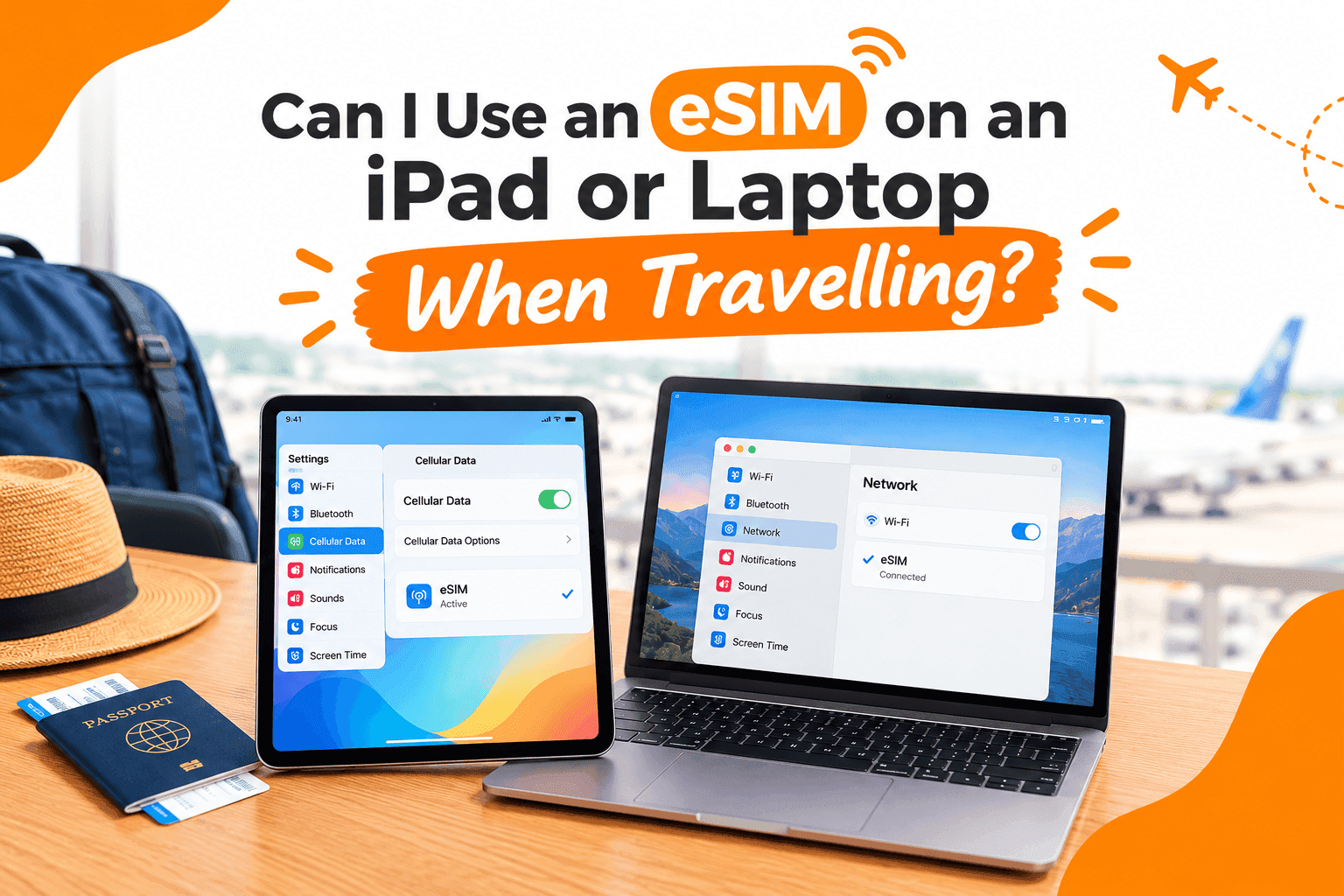
You are flying out of Bengaluru with an iPad for the kids' films and a laptop for work, and the hotel wifi is a gamble. You want to know whether a travel eSIM can go on those devices too, or whether it is a phone-only thing. The answer depends on which iPad or laptop you own.
Short answer
Yes, if the device has built-in cellular. An iPad with a cellular model, or a laptop sold with a mobile data feature, can hold an eSIM of its own. A wifi-only iPad or laptop cannot, so share your phone's data over hotspot instead.
What decides whether it works
An eSIM is a SIM built into your device, so there is no small plastic card to swap. People call it an eSIM card or an e sim, but nothing physical arrives. For the plan to go on a tablet or laptop, that device needs the cellular hardware inside it. Wifi-only models do not have it, and no setting can add it.
The quickest check is the model name. An iPad sold as "Wi-Fi + Cellular" has the hardware. A plain "Wi-Fi" iPad does not. For laptops, look for a mobile broadband or SIM line in the specification sheet, or check the eSIM compatible device list.
The right answer for each traveller
A family with a cellular iPad for the children
Install a separate eSIM on the iPad. It keeps the screen online on a long flight transfer, and your phone's battery is not drained by hotspot. Download shows and games before you leave, so the plan's data goes on maps and messages.
Someone with a wifi-only iPad
Use your phone as a hotspot. Our guide on sharing eSIM data by hotspot has the steps for iPhone and Android.
A remote worker with a laptop
If the laptop has built-in cellular, an eSIM on the laptop gives it its own line for video calls. If it does not, hotspot from the phone works, with a larger data size to cover calls. Check that the plan page allows sharing before you rely on it.
Someone away for a month
Give each device its own eSIM, so no single phone has to stay charged for everyone else. Choose a plan that covers every country on your route, as covered in regional against single-country plans.
Device by device
| Device | Can it hold an eSIM | Best setup |
|---|---|---|
| iPad Wi-Fi + Cellular | Yes, on recent models | Its own eSIM |
| iPad Wi-Fi only | No | Phone hotspot |
| Android tablet with cellular | Depends on the model | Check the device list, else hotspot |
| Laptop with mobile broadband | Some models | Its own eSIM if listed |
| Laptop without cellular | No | Phone hotspot |
How to install on an iPad
Connect to wifi
The iPad needs the internet once, to download the plan.
Open Settings, then Cellular Data
Tap Set Up Cellular Data, then choose to scan the QR code from your phone or laptop screen.
Confirm and switch on
The new line then shows under Cellular Data. Turn it on when you land.
The full flow, with the QR code explained, is in the installation guide. A plan bought for a phone cannot be moved onto an iPad afterwards, so buy a separate eSIM for each device.
Check the model name first. Cellular hardware means its own eSIM. Wifi-only means hotspot from your phone.
If a device only takes a physical SIM
A physical travel SIM is available for tablets and phones with a SIM tray, but not every cellular device has one. Check which your device takes before you pick.
The short version
A cellular iPad or laptop takes its own eSIM, installed at home on wifi. Everything else runs off your phone's hotspot. Match the data size to the device, because a laptop uses far more than a tablet.


