

How to Install eSIM on iOS
Please note that installation experience may differ by model or iOS version.
If you have any questions about installing eSIM on your iOS device, please reach out to our customer support via the Help Center and provide screenshots of your settings.
You can follow the step-by-step instructions below, or watch our iOS installation video guide.
Step 1 – Install eSIM
Two easy options available to install the eSIM. Please follow any one.
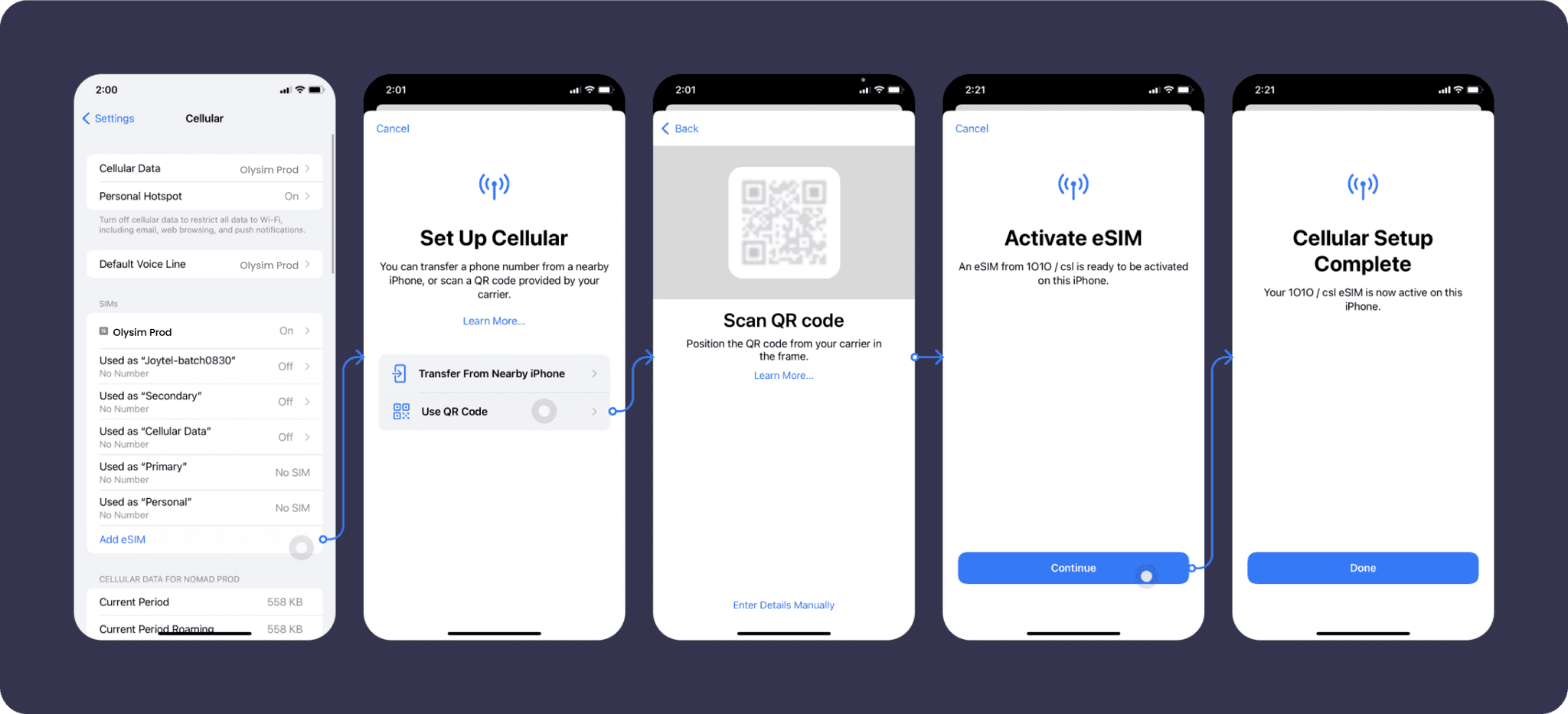
Use your camera phone to scan the QR code provided in your email or follow the steps below.
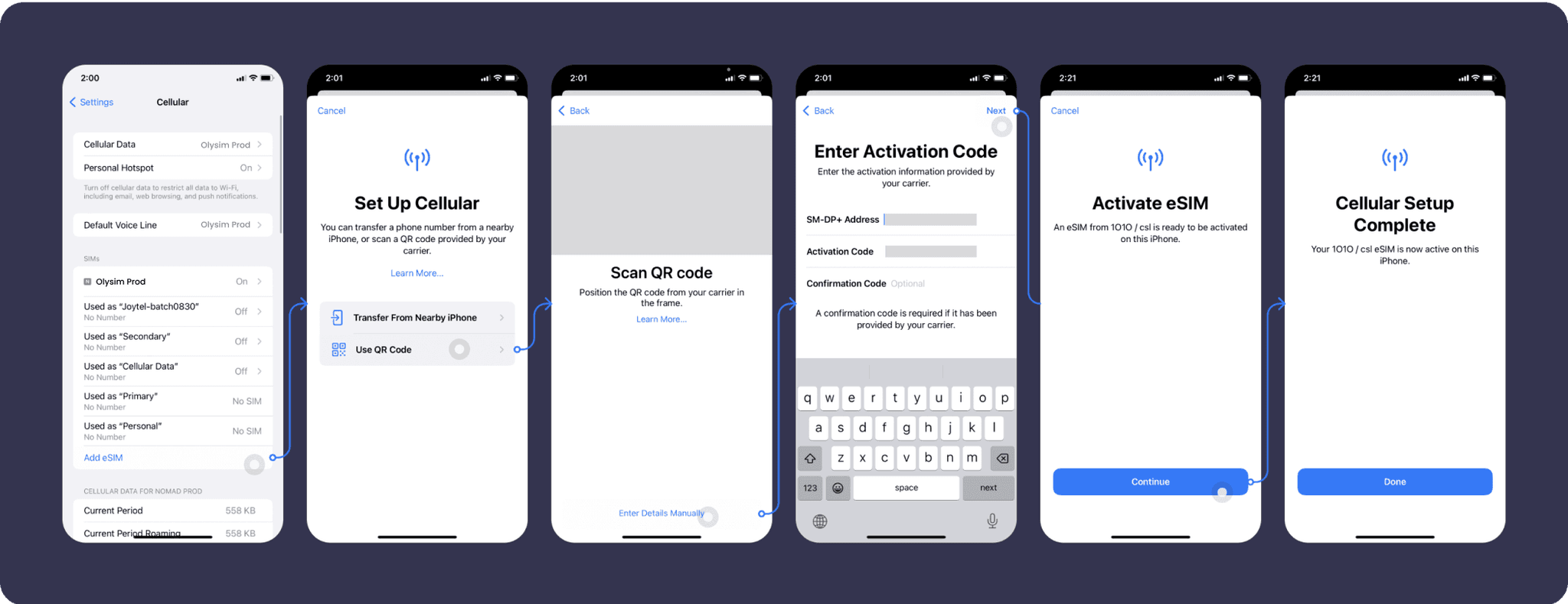
Go to Settings > Cellular > Add Cellular Plan, click “Enter Details Manually” and enter the information provided in your email.
SM-DP+ Address: (provided in your email)
Activation Code: (provided in your email)
Confirmation Code: not required
Step 2 – Connecting to the Network
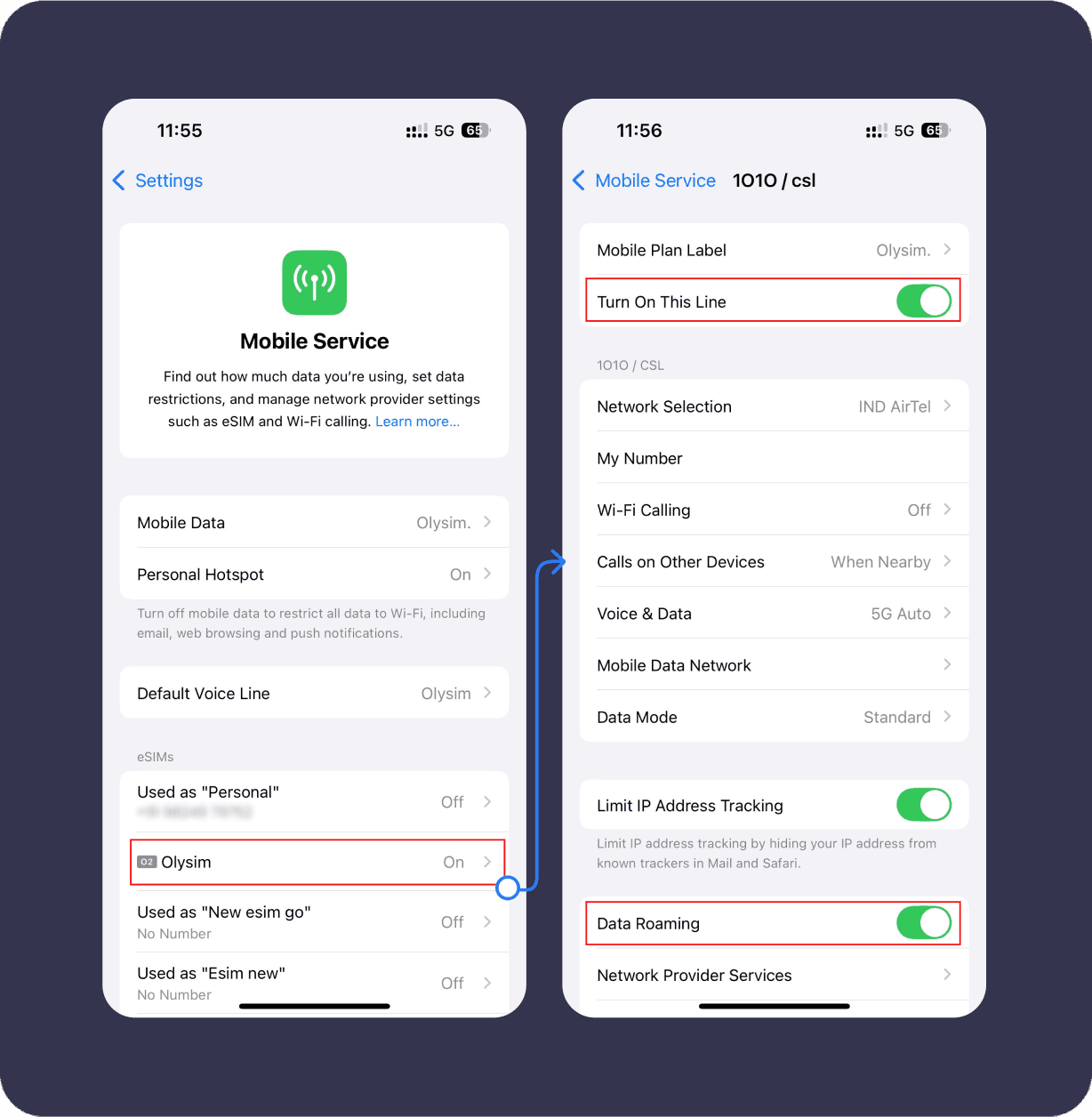
- Go to Settings > Cellular / Mobile service > Select newly added Olysim eSIM
- Make sure ‘Turn on this line’ is toggled on
- Turn on Data Roaming
- Now Olysim data is available to use
Install eSIM on Android
Please note that installation experience may differ by model or operating system version on Android devices. This installation guide is based on the operating system on Google Pixel 4.
If you have questions about installing eSIM onto your Android device, please search “install eSIM on [Your Device Model]” or reach out to customer support via Help Center and provide screenshots of your settings.
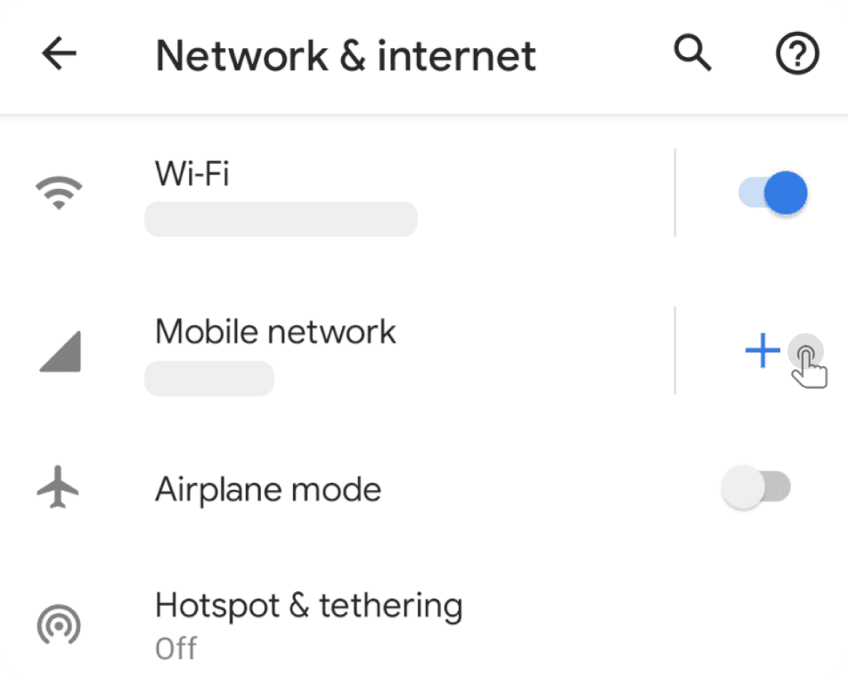
1. Go Into Settings
Select “Network & Internet” and click the plus sign next to “Mobile Network” or “SIMs” to add your new eSIM.
2. Install eSIM
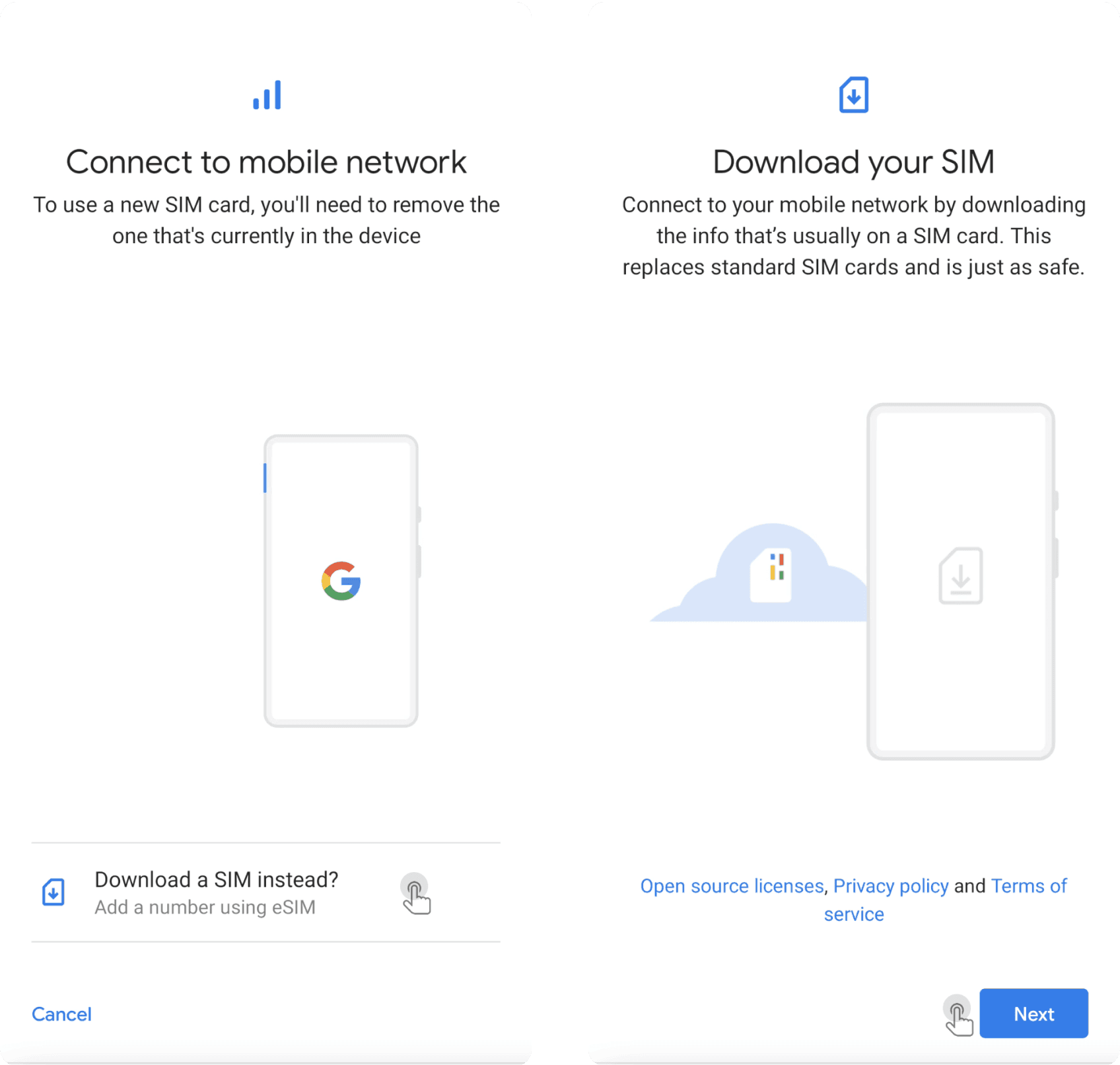
On the “Connect to mobile network” page, click “Download a SIM instead?” Then click “Next”.
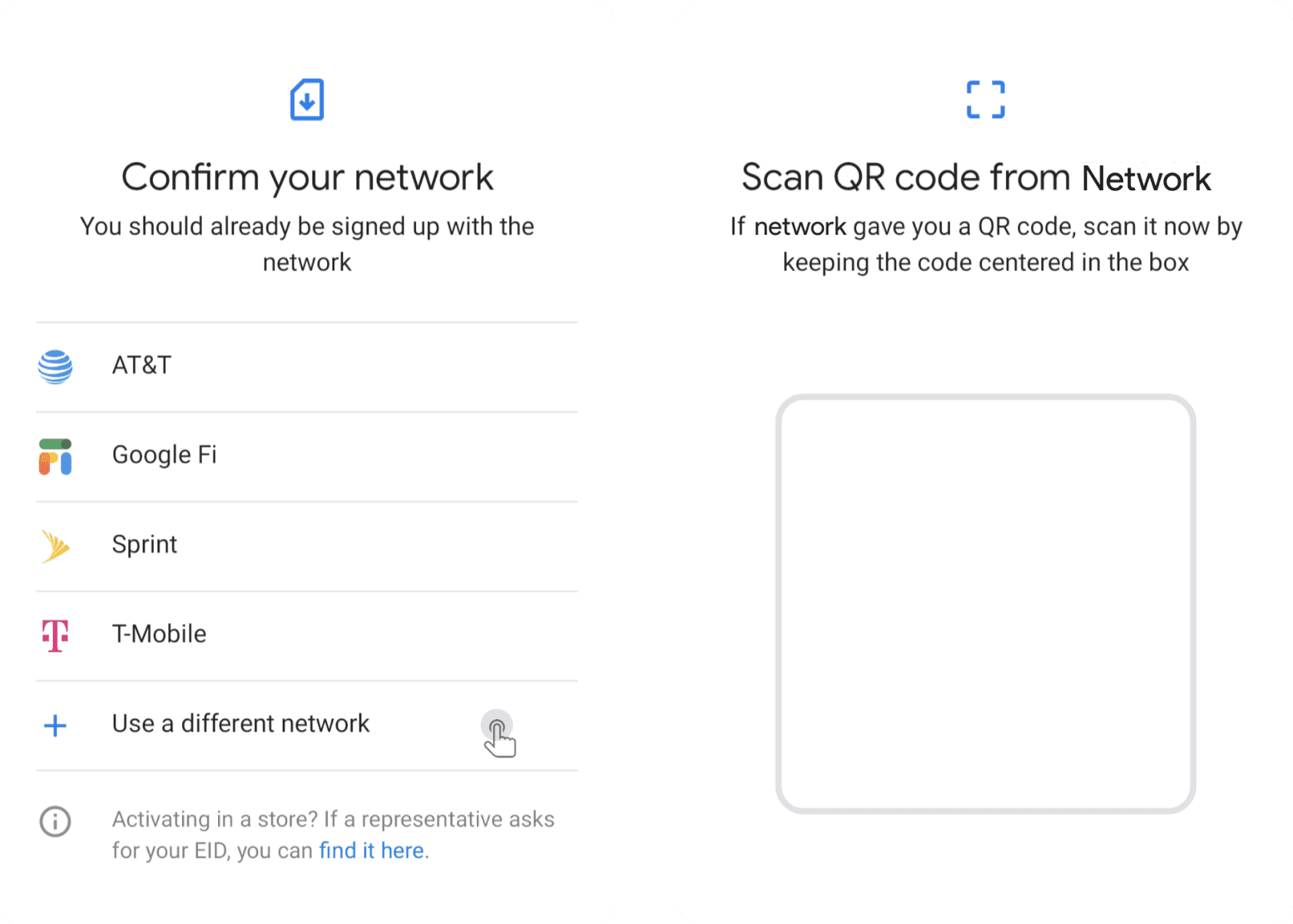
When confirming your network, click “Use a different network” and scan the QR code provided in your installation instruction email or on the previous page.
3. Start Using Data
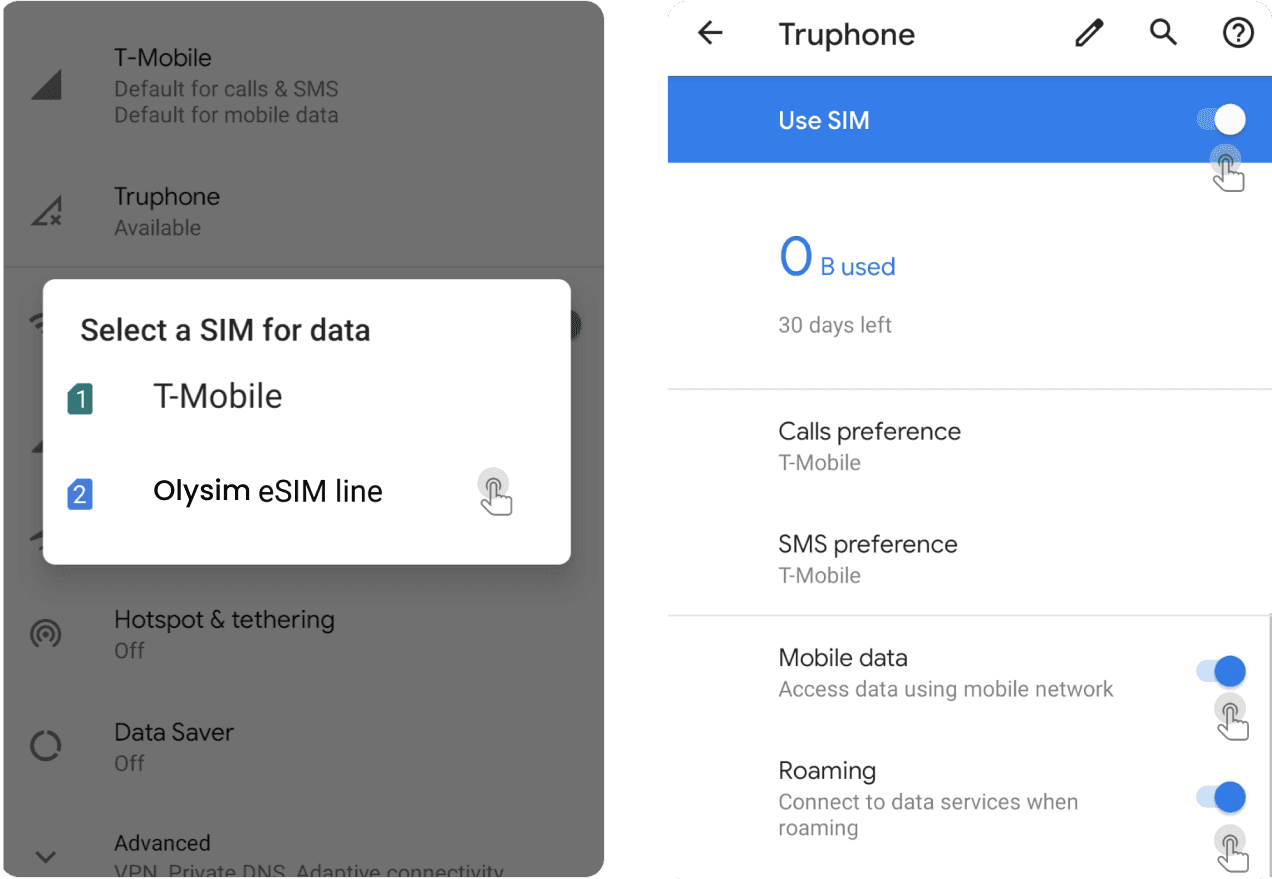
After successful installation, you will be asked which line you want to use for data. Choose the newly added Olysim line for mobile data. Click into the Olysim eSIM and make sure “Use SIM” is toggled on, and both “Mobile data” and “Roaming” are enabled. The network will appear within 5 minutes.
Install eSIM on Samsung Device
Please note that installation experience may differ by model or operating system version on Android devices. This installation guide is based on the operating system on Samsung Galaxy S22.
If you have questions about installing eSIM onto your Samsung device, please search “install eSIM on [Your Device Model]” or reach out to customer support via Help Center and provide screenshots of your settings.
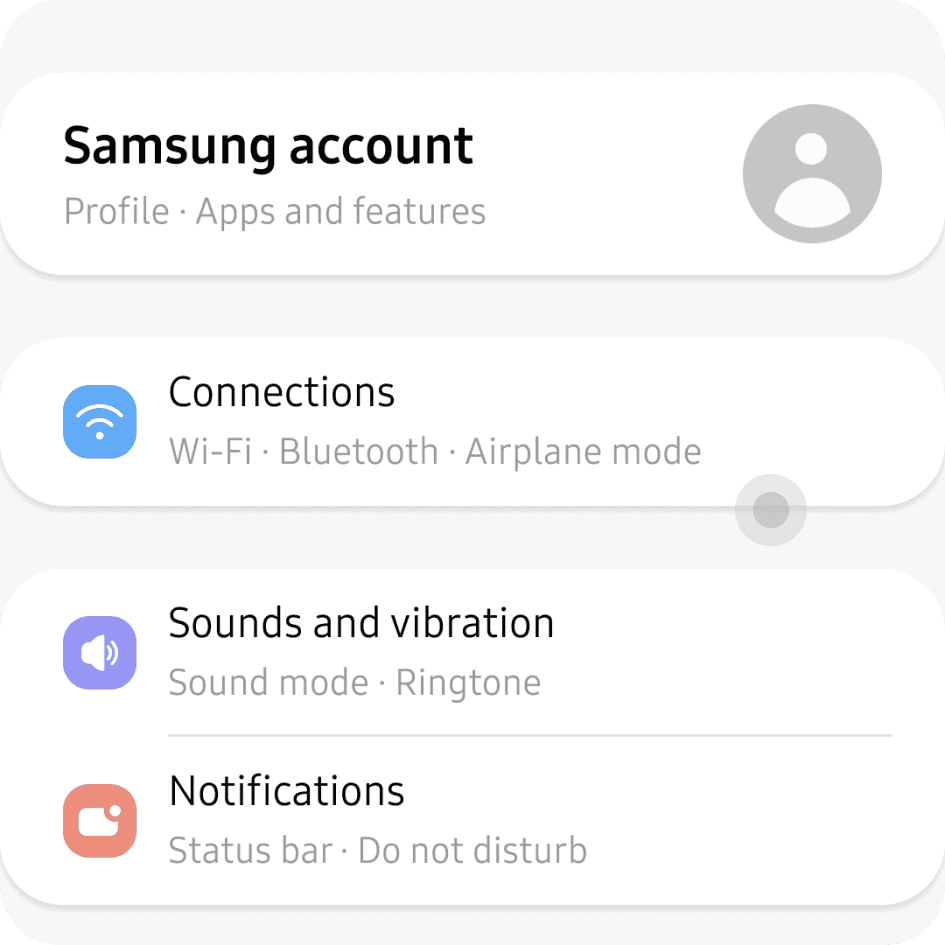
1. Go to Settings on your device
Tap on “Connections”.
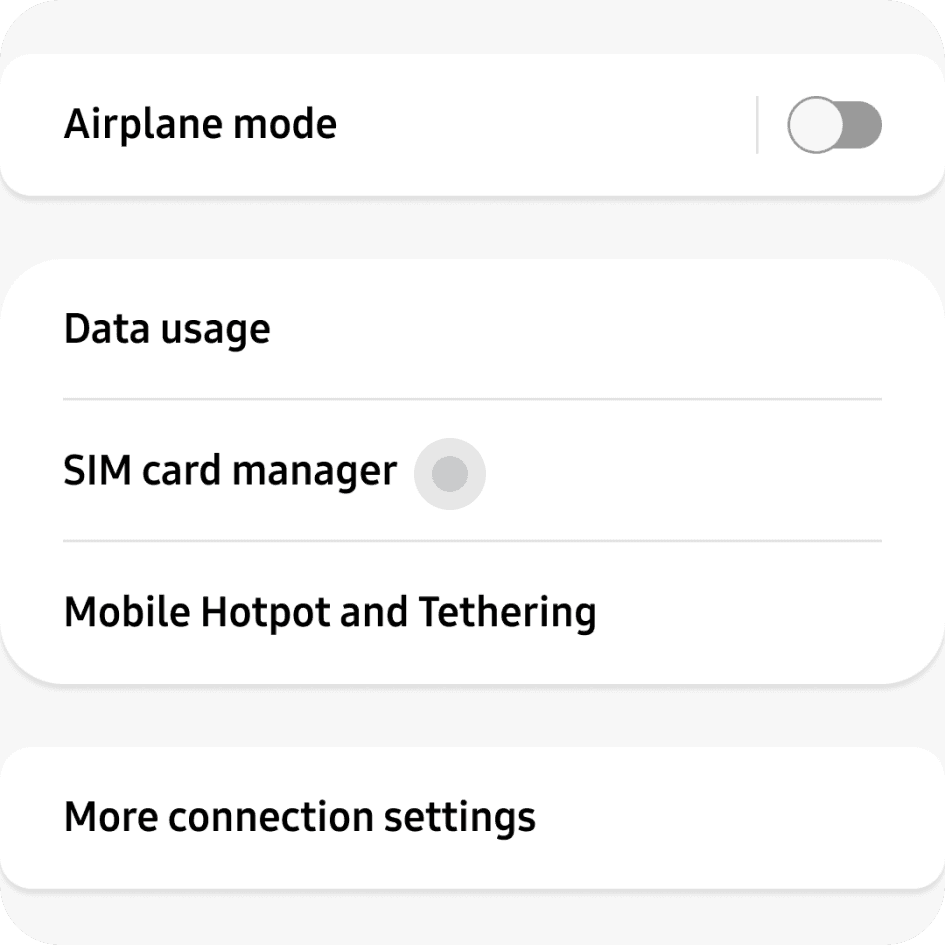
2. Install eSIM
Tap “SIM card manager”.
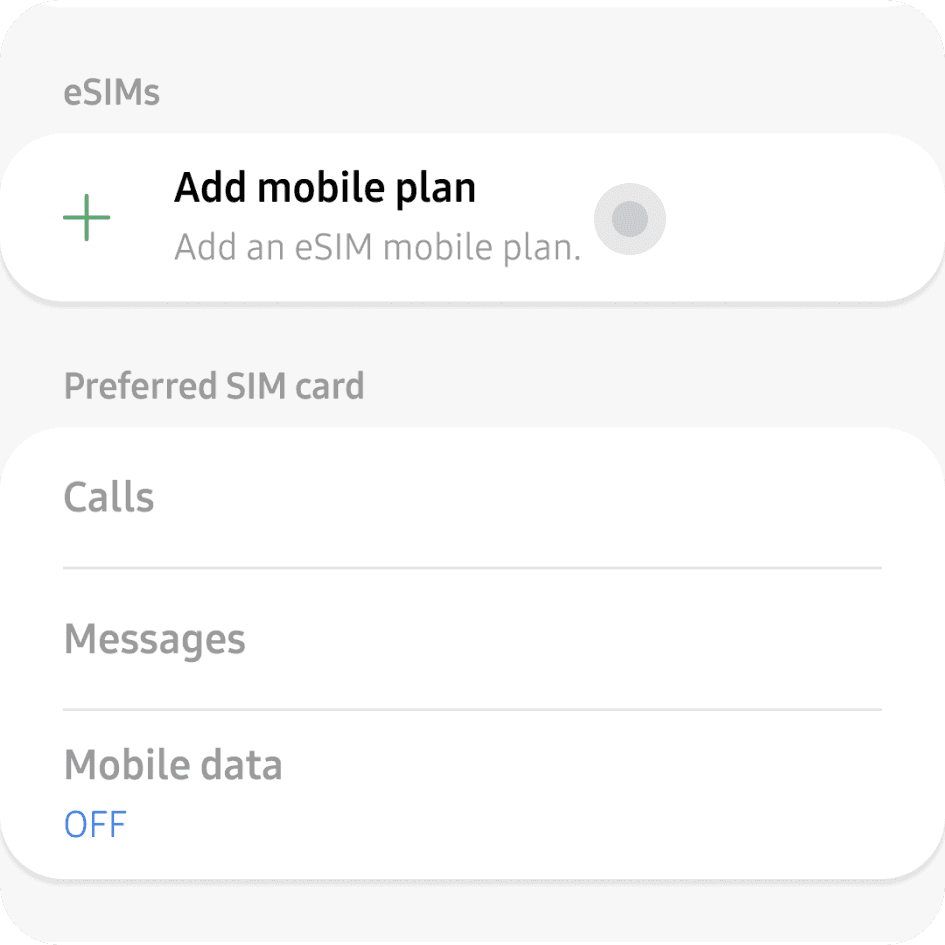
Tap “Add mobile plan”.
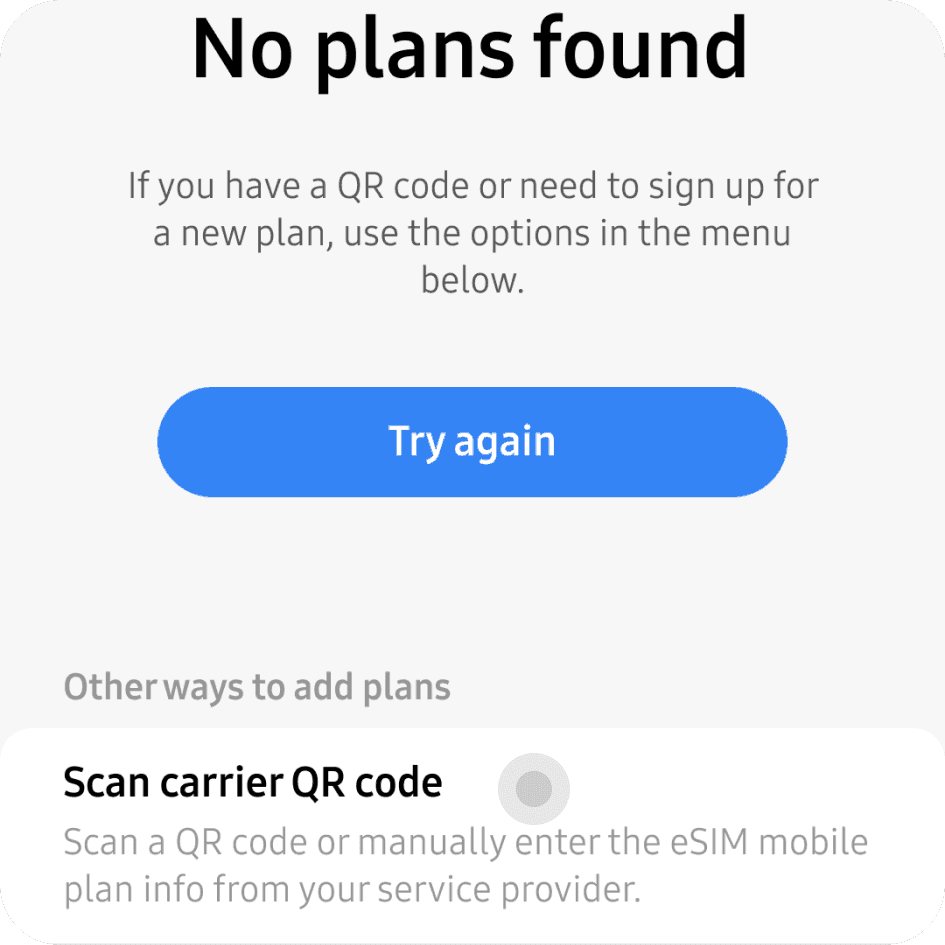
Tap “Scan carrier QR code” and scan the QR code provided in your Olysim email.
3. Start using data
After successful installation, you will be asked which line you want to use for data. Choose the Olysim line for mobile data. Click into the Olysim eSIM and make sure “Use SIM” is toggled on, and both “Mobile data” and “Roaming” are enabled.